Product settings
Open the store, click Configuration, then Products. The section has six parts, in the side panel: Matching & Import Rules, New Products, Prices, Categories, Images and Shopify.
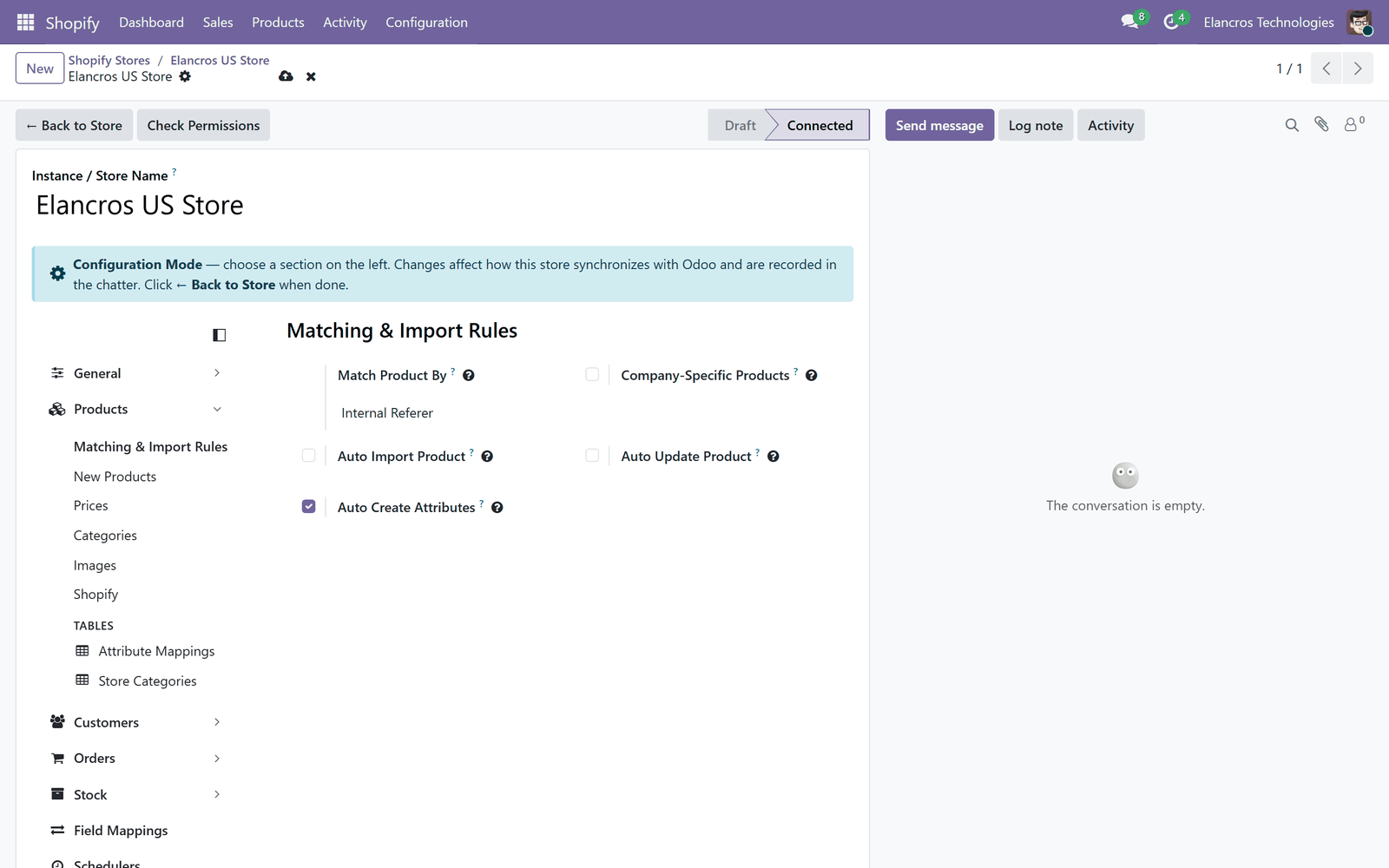
Matching & Import Rules
| Setting | What it does |
|---|---|
| Match Product By | How a Shopify variant finds its Odoo product: Internal Reference / SKU, Barcode, or SKU, then Barcode. |
| Company-Specific Products | On: products created from this store belong to its company only. Off: they are shared by all companies. |
| Auto Import Product | On: a Shopify product with no Odoo product is created in Odoo. Off: it is reported in the sync job and skipped. |
| Auto Update Product | On: imports also update the Odoo products that already exist, only for the values ticked Update on Import in Field Mappings. |
| Auto Create Attributes | On: unknown options (e.g. Color: Red) are created in Odoo. Off: the product waits until you map them in Attribute Mappings. |
Products already in Odoo
If your products are already in Odoo, give them the same SKU or barcode as on Shopify before the first import, and leave Auto Import Product off for that import: products that find no match are reported instead of created twice. Check the report, fix the codes, then import again.
Attribute Mappings
Shopify › Products › Attribute Mappings links Shopify option names and values (e.g. Colour, Rouge) to Odoo attributes and values (Color, Red). Rows created automatically are marked Auto Created: review them once.
New Products
| Setting | What it does |
|---|---|
| Product Type | Type of the products created from Shopify: Goods or Service, and Track Inventory for goods. |
| Default Product Category | Category of new products when no store category applies. |
Prices
| Setting | What it does |
|---|---|
| Store Prices | Where Shopify prices are kept in Odoo, for import and export. Product Sales Price: the product's sales price. Instance Pricelist: one price per variant on the store's pricelist. |
| Pricelist | The store's pricelist, when Store Prices is Instance Pricelist. It must be in the store currency. |
Whether prices are imported or sent at all is set by the Price row of Field Mappings.
When to use a pricelist
Use Instance Pricelist when the store currency is not the company currency (the setup checklist asks for it), or when Shopify prices differ from your Odoo sales prices. A warning appears when other stores keep their prices on the same pricelist.
Categories
| Setting | What it does |
|---|---|
| Import Categories | Keeps the Shopify categories in Store Categories and gives new products the matching Odoo category. |
| Category Source | Which Shopify value is the category: Product Type (free text) or Shopify Standard Category (Shopify's taxonomy). |
| Auto Create Odoo Categories | On: a Shopify category with no match creates an Odoo category. Off: map it yourself in Store Categories. |
In Shopify › Products › Store Categories, each row links a Shopify category to an Odoo Category. When several store categories use the same Odoo category, tick Use for Export on the one products added to the store layer should get.
Images
| Setting | What it does |
|---|---|
| Import Images | Brings the product and variant images from Shopify. They arrive a few minutes after the products. |
| Overwrite Existing Images | On: replaces the main image of products that already have one. Off: Shopify images are added; existing main images stay. |
| Image Removed on Store | Keep in Odoo, or Remove from Odoo (unless another store still uses it). |
| Export Images | Sends the product images to Shopify with Export to Store and Update on Store, shortly after the products. |
| Image Removed in Odoo | Keep on Store, or Remove from Store at the next update. |
The images of each store are listed in Shopify › Products › Store Images.
Shopify
| Setting | What it does |
|---|---|
| Product Statuses to Import | Import Active Products, Import Draft Products, Import Archived Products: new Shopify products are imported only with a ticked status. At least one is needed. |
| Large Import From | Above this number of products (default 1,000), Import Products runs in the background in batches: see Bulk Imports. 0: never. |
| Default Sales Channels | Sales channels (Online Store, Point of Sale…) given to the products added to the store layer. You can change them per product. |
What happens next
Bring your Shopify products into Odoo: Import products.