Complete the setup
A connected store does not synchronize until its setup is complete. Until then, the store shows a yellow box, Complete the store setup to start synchronizing, with a progress bar and the settings still missing.
Why operations wait
Odoo creates products, contacts and orders from your store's data. Without a company, a warehouse or a rule to match products, it would create them in the wrong place or create duplicates. Every operation stops with a message until the checklist is complete.
The checklist
| Step | Settings checked | Shown |
|---|---|---|
| Connect the store | The store is Connected | Always |
| General Settings | Company, Store Currency, Warehouse | Always |
| Product Settings | Match Product By, Product Type, the Shopify Product Statuses to Import (at least one), and the Pricelist when prices are kept in a pricelist | Always |
| Order Settings | The order settings and the store values to map | When Import Orders is on |
| Stock Settings | A store location that exports stock, and its warehouses | When Export Stock is on |
Configuration mode
Click Continue Setup in the yellow box: the store opens in configuration mode, on the first section with missing settings. You can also open it any time with the Configuration button of the store.
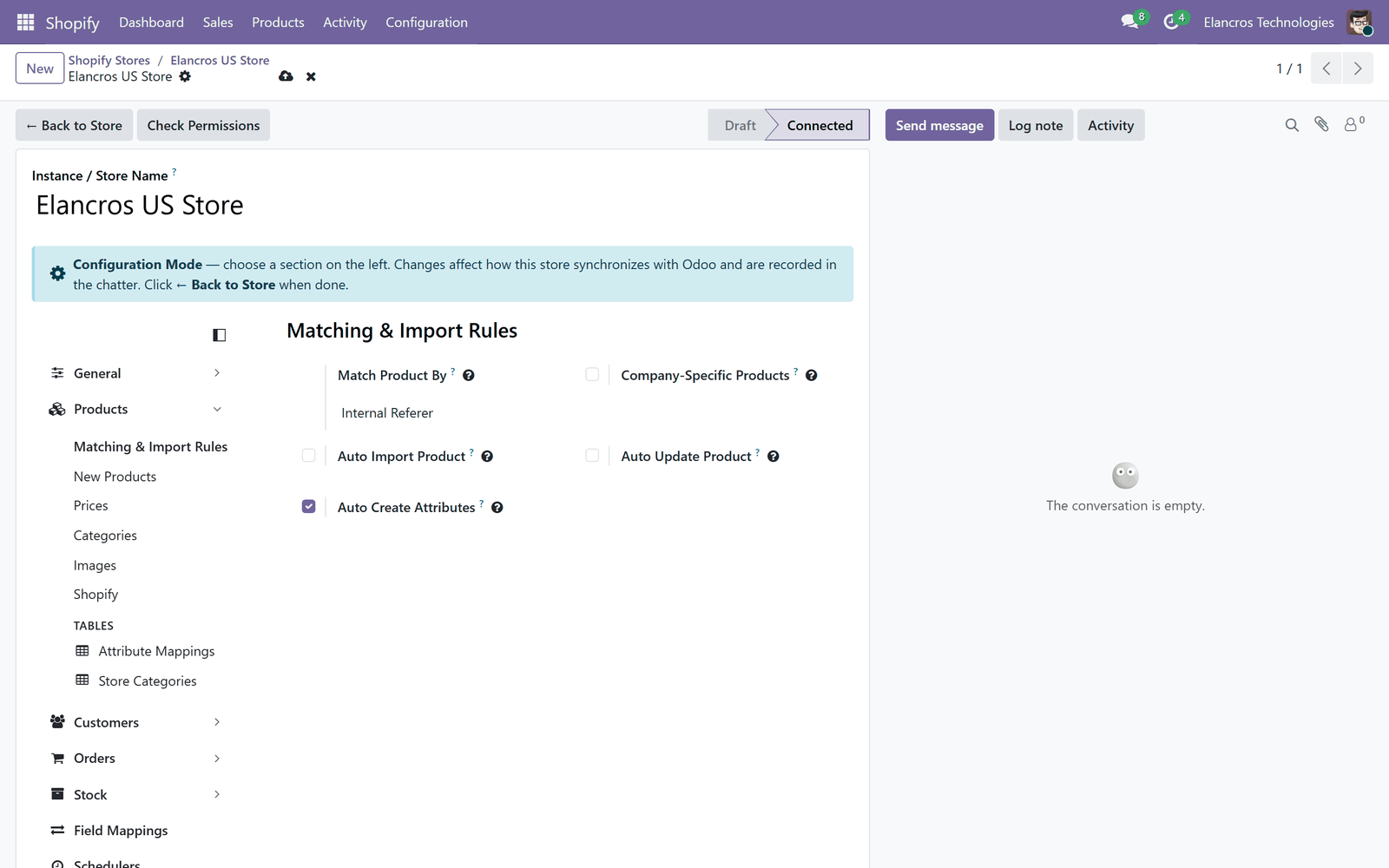
- Sections on the left: General, Products, Customers, Orders, Stock, Field Mappings and Schedulers. A section with missing settings is marked.
- Tables under a section open the lists that belong to it, such as Attribute Mappings or Store Categories.
- Every setting has a short explanation; hover the ? for more.
- Every change is recorded in the store's chatter, with the old and the new value.
- Click ← Back to Store when you are done.
Schedulers are never switched on for you
Odoo adds the schedulers a store needs (for example Export Shipments when you import orders), but switched off. Nothing runs by itself until you switch a scheduler on in Schedulers.
What happens next
When the checklist is complete, the yellow box disappears and Perform Operation runs imports and exports. Go through the settings of each section: General settings.